💡 文章重點摘要:在實作 網頁無障礙(Web Accessibility, a11y)時,許多開發者雖然使用了 HTML5 的
<header>與<nav>標籤,卻常在無障礙檢測工具(如 Lighthouse 或 axe DevTools)中收到地標角色重複、缺少跳過導覽機制(Skip Link)或漢堡選單狀態無法播報等警告。本文將依據 W3C HTML-AAM 1.0、W3C Using ARIA 與 WCAG 2.2 官方規範,完整解析螢幕閱讀器如何識別頁首地標,並提供可直接套用的標準程式碼範本。
在開發現代化網站時,頁首(Header)通常是整張網頁最複雜的互動樞紐——裡面包含了品牌 Logo、主選單、站內搜尋框以及行動版的漢堡選單按鈕。對於視覺正常的使用者而言,一眼就能跳過頂部導覽列直接閱讀下方文章;但對於依賴螢幕閱讀器(Screen Reader,如 NVDA、JAWS、VoiceOver)或純鍵盤操作的使用者來說,若頁首結構缺乏正確的 網頁無障礙 設計,他們每切換一頁就必須被迫重複按數十次 Tab 鍵穿過所有選單連結,才能抵達正文。
究竟 <header> 什麼時候會被視為全站橫幅地標(role="banner")?已經用了 <header> 還需要手動寫 role="banner" 嗎?以下先提供 30 秒即可複製使用的標準無障礙頁首範本,再逐步拆解底層規範。
⚡ 快速簡單使用(30 秒複製即用範本)
以下範本整合了 WCAG 2.2 SC 2.4.1 跳過導覽連結(Skip Link)、頂層 <header>、帶有無障礙命名的 <nav> 主選單(標註當前頁面 aria-current="page")、原生 <search> 搜尋地標,以及具備 aria-expanded 狀態回饋的 RWD 漢堡選單按鈕:
<!DOCTYPE html>
<html lang="zh-Hant-TW">
<head>
  <meta charset="UTF-8">
  <style>
    /* Skip Link:平時移出畫面外,僅在鍵盤按 Tab 聚焦 (:focus-visible) 時滑入左上角 */
    .skip-link {
      position: absolute;
      top: -100%;
      left: 1rem;
      z-index: 9999;
      padding: 0.75rem 1.25rem;
      background-color: #0f172a;
      color: #ffffff;
      font-weight: 600;
      text-decoration: none;
      border-radius: 0 0 0.5rem 0.5rem;
    }
    .skip-link:focus-visible {
      top: 0;
      outline: 3px solid #38bdf8;
      outline-offset: 2px;
    }

    /* Safari WebKit 修補:當清單設定 list-style: none 時,搭配 HTML role="list" 保留清單語意 */
    .nav-list {
      list-style: none;
      display: flex;
      gap: 1.25rem;
      margin: 0;
      padding: 0;
    }
  </style>
</head>
<body>
  <!-- 1. 頂層 header(直接位於 body 下,瀏覽器自動映射為 role="banner",無須重複宣告 role) -->
  <header class="site-header">
    <!-- 2. WCAG 2.4.1 必備:鍵盤按下第一下 Tab 即可直接跳至 <main> -->
    <a href="#main-content" class="skip-link">跳至主要內容</a>

    <!-- 3. 品牌 Logo:若為圖片連結,alt 應清楚說明「返回首頁」之功能目的 -->
    <a href="/" class="brand-logo">
      <img src="/logo.svg" alt="Sean 技術筆記首頁" width="140" height="36">
    </a>

    <!-- 4. 行動版漢堡選單按鈕:必須使用 <button> 並維護 aria-expanded 與 aria-controls -->
    <button
      type="button"
      id="menu-toggle"
      aria-expanded="false"
      aria-controls="primary-nav"
      aria-label="開啟主選單"
    >
      <svg width="24" height="24" viewBox="0 0 24 24" aria-hidden="true" focusable="false">
        <path d="M4 6h16M4 12h16M4 18h16" stroke="currentColor" stroke-width="2" stroke-linecap="round"/>
      </svg>
    </button>

    <!-- 5. 主選單地標:aria-label 寫「主選單」即可,避免重複寫「導覽」造成播報冗餘 -->
    <nav id="primary-nav" aria-label="主選單">
      <ul class="nav-list" role="list">
        <li><a href="/" aria-current="page">首頁</a></li>
        <li><a href="/html/">HTML 教學</a></li>
        <li><a href="/about/">關於本站</a></li>
      </ul>
    </nav>

    <!-- 6. 原生搜尋地標:自動映射為 role="search" -->
    <search aria-label="站內文章">
      <form action="/search" method="get">
        <label for="header-search-input" class="visually-hidden">搜尋關鍵字</label>
        <input type="search" id="header-search-input" name="q" placeholder="搜尋技術文章...">
        <button type="submit">搜尋</button>
      </form>
    </search>
  </header>

  <!-- 7. 主內容區:加上 tabindex="-1" 確保 Skip Link 點擊後程式焦點能穩定落駐 -->
  <main id="main-content" tabindex="-1">
    <h1>網頁無障礙頁首設計實戰</h1>
  </main>
</body>
</html>
一、 5 秒快速索引:頁首相關 HTML 標籤與 W3C 無障礙樹(Accessibility Tree)映射對照表
在深入探討實作細節前,我們先對照 W3C HTML Accessibility API Mappings 1.0 (HTML-AAM) 與 W3C ARIA Landmarks Pattern,釐清頁首常見元素在螢幕閱讀器中的真實角色與命名規則:
| HTML 元素與上下文條件 | 隱含 ARIA 角色 (Implicit Role) | 螢幕閱讀器中文播報名稱 | 是否需要 aria-label? | W3C 官方規範與實務注意事項 |
|---|---|---|---|---|
<header>(位於 <body> 頂層) | banner(橫幅地標) | 「橫幅地標 (Banner landmark)」 | ❌ 通常不需要(全頁唯一) | 根據 W3C 規範,每頁最多只能有 1 個 頂層 banner 地標;且不應重複加上 role="banner"。 |
<header>(位於 <article>、<section>、<main>、<aside>、<nav> 內) | generic(一般容器) | (不作為地標播報) | ❌ 禁止直接命名 | 區段內部的 <header> 已失去地標語意;對 generic 角色直接加 aria-label 會觸發 aria-prohibited-attr 警告。 |
<nav>(導覽容器) | navigation(導覽地標) | 「導覽地標 (Navigation landmark)」 | ✅ 建議加上(當全頁有 ≥2 個 <nav> 時必填) | 命名請寫 aria-label="主選單",切勿寫「主選單導覽」,否則螢幕閱讀器會重複播報「主選單導覽 導覽」。 |
<search>(或 <form role="search">) | search(搜尋地標) | 「搜尋地標 (Search landmark)」 | ⭕ 視情況(有多個搜尋框時必填) | 讓視障使用者可透過地標快捷鍵(如 NVDA 按 D 鍵)一秒跳至站內搜尋欄。 |
<a href="#main-content" class="skip-link"> | link(超連結) | 「跳至主要內容,連結」 | ❌ 不需要(已有清晰錨點內文) | 應作為 <body> 或頂層 <header> 內的第 1 個可聚焦元素,滿足 WCAG 2.2 SC 2.4.1 Bypass Blocks。 |
二、 螢幕閱讀器如何「看見」你的頁首?無障礙導覽路徑解析
視覺使用者進入網頁時,眼球會自動忽略頂部高度 64px 的導覽列,直接聚焦在畫面中央的 <h1> 大標題;但螢幕閱讀器與鍵盤使用者是依照 DOM 樹的先後順序 由上而下線性讀取的。
一個符合 網頁無障礙 標準的頂層 <header>,必須同時照顧兩類無障礙導覽模式:
- 鍵盤
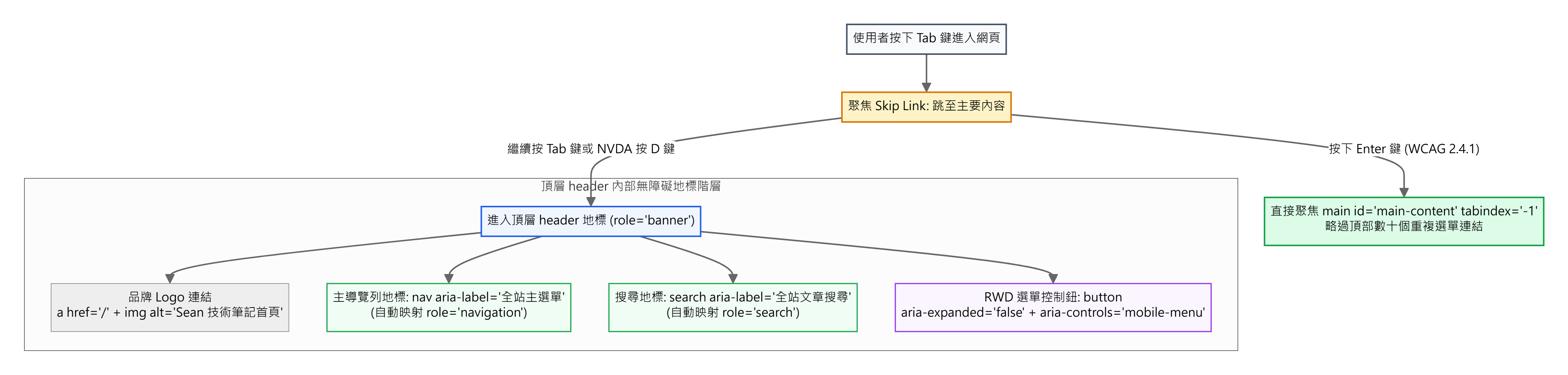
Tab鍵順序導覽(Sequential Focus Navigation):透過首個聚焦的 Skip Link(跳至主要內容),讓鍵盤使用者按一下Enter就能直接跨越整個頁首,把焦點送到<main id="main-content" tabindex="-1">。 - 螢幕閱讀器地標跳轉(Landmark Navigation):當盲人使用者在 NVDA / JAWS 按下
D鍵(或在 macOS VoiceOver 按VO + U開啟地標轉輪)時,能夠清楚聽見:banner(全站橫幅)➔navigation(主選單)➔search(站內搜尋)➔main(主要內容)。
請參考下圖的無障礙導覽路徑架構:
三、 W3C 官方規範釐清:該不該寫 role="banner"?為什麼區段內的 header 不能加 aria-label?
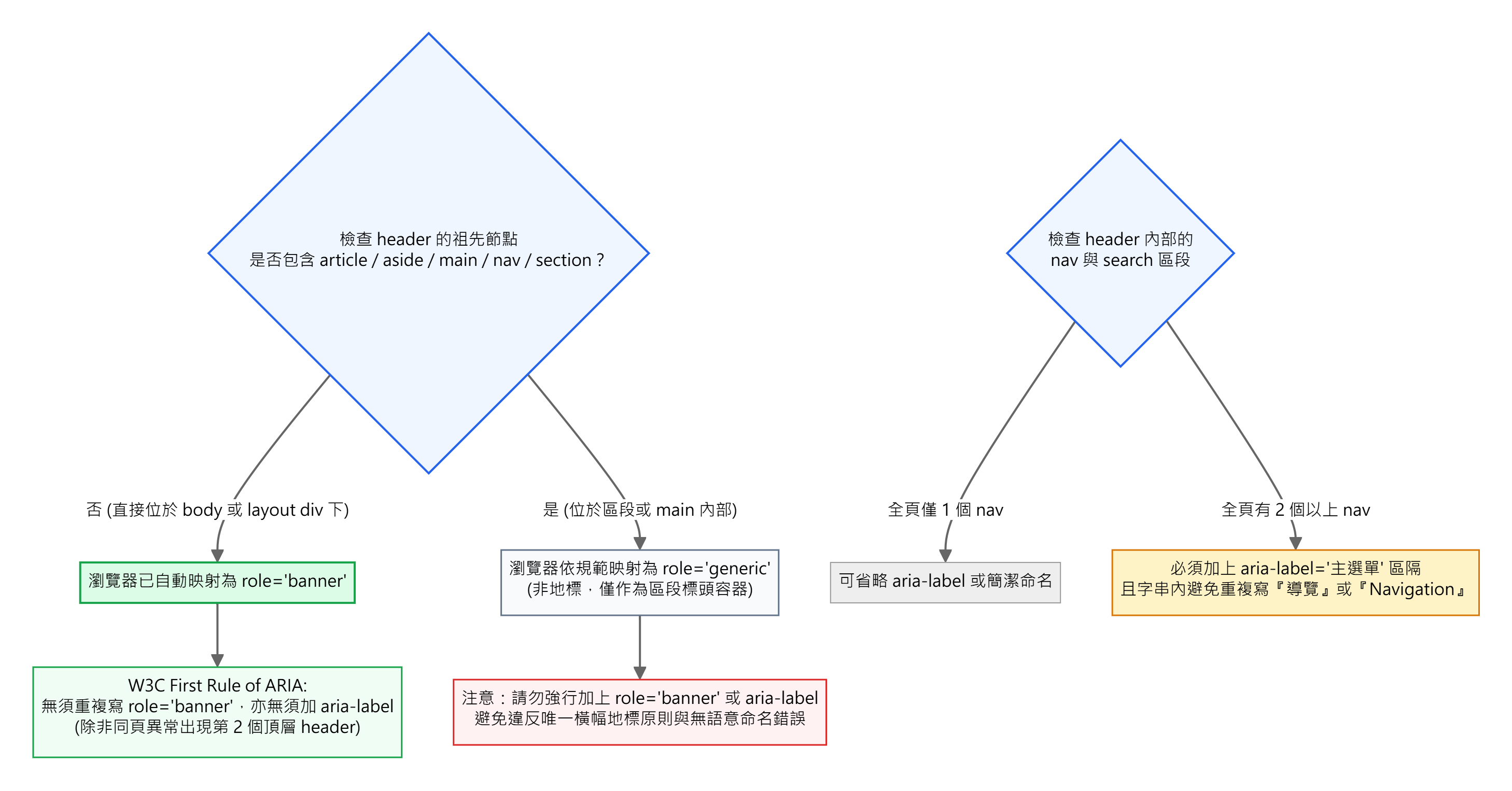
在檢視既有專案的 HTML 原始碼時,最常發現開發者對 <header> 與 <nav> 的 ARIA 屬性有三個常見誤解。我們可以透過下圖的 W3C 決策流程快速判斷正確寫法:
1. 已經寫了頂層 header,還需要手動加上 role="banner" 嗎?
早期(約 2013~2015 年 IE11 時代)部分教學會建議寫 <header role="banner">。但在現代標準中,根據 W3C Using ARIA (§2.1 First Rule of ARIA Use) 與 WHATWG HTML Living Standard:
- 只要
<header>的祖先不包含<article>、<aside>、<main>、<nav>或<section>,所有現代瀏覽器皆已原生將其映射為role="banner"。 - 不建議手動重複寫
<header role="banner">:首先這是多餘的冗餘標記(W3C Nu HTML Validator 會發出 Warning);其次,萬一未來這段元件被移入<article>或<main>內部,原本應該自動降級為generic的<header>,會因為硬編碼了role="banner"而強制保留橫幅地標角色,導致同頁出現多個banner地標而違反無障礙規範(可對照我們在《多重 header 怎麼用?HTML5 區段內容與頁首標籤的巢狀階層拆解》中的詳細說明)。
2. 為什麼在 article 內的 header 加上 aria-label 會報錯?
許多開發者看到「地標有多個時要用 aria-label 區隔」,就順手在文章內的 <header> 寫下 <article><header aria-label="文章標頭">。
- 規範真相:當
<header>位於<article>或<section>內時,它的隱含角色是role="generic"(等同於<div>)。根據 W3C ARIA in HTML 規範,generic角色禁止使用aria-label或aria-labelledby命名(Prohibited Naming)!若強行加上,axe DevTools 與 Lighthouse 就會判定無障礙違規。只有當同頁有 2 個以上<nav>(role="navigation")時,才需要為<nav>加上aria-label區隔。
3. nav aria-label="..." 的重複播報問題(Redundant Announcement)
當你寫 <nav aria-label="主選單導覽">(英文寫 <nav aria-label="Main navigation">)時,因為 <nav> 本身的角色名稱就叫做「導覽(navigation)」,螢幕閱讀器會把「名稱 + 角色」串在一起唸出來,變成:
- ❌ 「主選單導覽,導覽地標」(或英文
"Main navigation, navigation")。 - 🟢 解決思路:
aria-label裡面只寫用途名稱(例如aria-label="主選單"或aria-label="頁尾快速連結"),螢幕閱讀器就會自然播報為 「主選單,導覽地標」。
四、 頁首無障礙 4 大關鍵互動細節:Skip Link、Logo 替代文字、aria-current 與 RWD 漢堡選單
除了外層的 <header> 與 <nav> 容器,頁首內部的互動元件才是無障礙稽核(WCAG 2.2 Level AA)最常失分的地方:
細節 1:實作符合 WCAG 2.2 SC 2.4.1 的「跳至主要內容(Skip Link)」
根據 W3C WCAG 2.2 SC 2.4.1: Bypass Blocks (Level A),網站必須提供一套機制,讓鍵盤使用者能繞過每頁重複出現的導覽區塊。
- 實作要點:
- 將
<a href="#main-content" class="skip-link">跳至主要內容</a>放在<header>內的第一個元素。 - 切勿使用
display: none或visibility: hidden隱藏它,否則鍵盤Tab鍵根本無法聚焦到它!應使用position: absolute; top: -100%;將其移出視窗外,並在:focus-visible時設為top: 0;顯示出來。 - 目標
<main id="main-content" tabindex="-1">建議加上tabindex="-1",確保在所有瀏覽器中點擊錨點後,鍵盤下一次按Tab都能確定從<main>內部開始往下走。
- 將
細節 2:品牌 Logo 圖片連結的無障礙名稱(WCAG SC 1.1.1 & SC 2.4.4)
頁首左上角的 Logo 通常是一個包裹著 <img> 或 <svg> 的 <a> 超連結:
- ❌ 常見錯誤 1:
<a href="/"><img src="logo.png" alt=""></a>➔ 圖片alt留空,導致整顆連結沒有任何無障礙文字,螢幕閱讀器只能唸出冰冷的網址斜線"slash, link"。 - ❌ 常見錯誤 2:
<a href="/"><img src="logo.png" alt="公司標誌 Logo 圖示"></a>➔ 違反 W3C WAI 圖片教學規範(功能性圖片應描述連結目的地,而非描述這是一張圖示)。 - 🟢 標準做法:
<a href="/"><img src="logo.svg" alt="Sean 技術筆記首頁"></a>。若使用行內<svg>,請在<a href="/" aria-label="Sean 技術筆記首頁">命名,並在<svg aria-hidden="true" focusable="false">隱藏圖形細節。
細節 3:使用 aria-current="page" 取代純視覺的 .active 類別
視覺設計常透過 .nav-link.active { color: blue; font-weight: bold; } 標示使用者目前所在的頁面,但螢幕閱讀器並不會播報自訂的 CSS class 名稱。
- 🟢 標準做法:在當前頁面的導覽連結加上
aria-current="page"(例如<a href="/html/" aria-current="page">HTML 教學</a>),並直接用屬性選擇器a[aria-current="page"]撰寫高亮 CSS。如此一來,螢幕閱讀器在唸到該連結時就會主動播報:「HTML 教學,目前頁面,連結」。
細節 4:RWD 行動版漢堡選單按鈕的無障礙狀態同步
在手機版畫面中,導覽列常收合為一顆「漢堡按鈕(Hamburger Button)」:
- 必須使用原生的
<button type="button">(避免使用<div onclick="...">或<a href="#">)。 - 預設收合時設定
aria-expanded="false"與aria-controls="primary-nav";當使用者點擊展開選單時,透過 JavaScript 同步將aria-expanded更新為"true",並在按下鍵盤Escape鍵時支援關閉選單並將焦點歸還給漢堡按鈕。
五、 實戰程式碼對比:從常見無障礙缺失寫法到 WCAG 2.2 標準重構
以下我們對比常見的無障礙缺失寫法,並提供包含自動化無障礙診斷腳本的完整生產級範例。
1. ❌ 常見無障礙缺失寫法(缺少 Skip Link、div 假按鈕、Logo 空 alt、重複命名)
<!-- ❌ 問題 1:在 main 內部或區段內硬編碼 role="banner",或在多個 header 濫用 aria-label -->
<header role="banner" aria-label="網站頂部頁首橫幅">
  <!-- ❌ 問題 2:缺少 Skip Link,鍵盤使用者每頁都得按十幾次 Tab 才能跳過選單 -->

  <!-- ❌ 問題 3:Logo 圖片 alt="" 為空,螢幕閱讀器無法得知連結用途 -->
  <a href="/">
    <img src="/logo.png" alt="">
  </a>

  <!-- ❌ 問題 4:用 div 當漢堡選單按鈕,鍵盤 Tab 無法聚焦,且無 aria-expanded 狀態 -->
  <div class="hamburger-btn" onclick="toggleMenu()">☰</div>

  <!-- ❌ 問題 5:aria-label 包含「導覽」二字,造成「主選單導覽 導覽」重複播報;且當前頁僅用 .active -->
  <nav aria-label="主選單導覽">
    <ul>
      <li><a href="/" class="active">首頁</a></li>
      <li><a href="/blog">技術文章</a></li>
    </ul>
  </nav>
</header>
2. 🟢 生產級標準重構範例(WCAG 2.2 AA 合規頁首 + 漢堡選單鍵盤互動 + 自動化檢測腳本)
<!DOCTYPE html>
<html lang="zh-Hant-TW">
<head>
  <meta charset="UTF-8">
  <meta name="viewport" content="width=device-width, initial-scale=1.0">
  <title>WCAG 2.2 無障礙頁首 (Accessible Header) 標準實戰範本</title>
  <style>
    .visually-hidden {
      position: absolute;
      width: 1px;
      height: 1px;
      padding: 0;
      margin: -1px;
      overflow: hidden;
      clip: rect(0, 0, 0, 0);
      white-space: nowrap;
      border: 0;
    }

    .skip-link {
      position: absolute;
      top: -100%;
      left: 1rem;
      z-index: 9999;
      padding: 0.75rem 1.25rem;
      background: #0f172a;
      color: #fff;
      text-decoration: none;
      border-radius: 0 0 0.5rem 0.5rem;
    }
    .skip-link:focus-visible {
      top: 0;
      outline: 3px solid #38bdf8;
    }

    .site-header {
      display: flex;
      align-items: center;
      justify-content: space-between;
      padding: 0.75rem 1.5rem;
      border-bottom: 1px solid #e2e8f0;
      background: #ffffff;
    }

    .nav-list {
      list-style: none;
      display: flex;
      gap: 1.25rem;
      margin: 0;
      padding: 0;
    }

    /* 直接以 aria-current="page" 無障礙狀態驅動視覺高亮樣式 */
    .nav-list a[aria-current="page"] {
      color: #2563eb;
      font-weight: 700;
      text-decoration: underline;
      text-underline-offset: 4px;
    }
  </style>
</head>
<body>
  <!-- ✅ 頂層 <header>:自動具備 role="banner",不重複寫 role 屬性 -->
  <header class="site-header" id="top-header">
    <!-- ✅ 1. Skip Link 跳至主要內容 -->
    <a href="#main-content" class="skip-link">跳至主要內容</a>

    <!-- ✅ 2. 明確描述目的地之品牌 Logo 連結 -->
    <a href="/" class="brand-link">
      <img src="/logo.svg" alt="Sean 技術筆記首頁" width="140" height="36">
    </a>

    <!-- ✅ 3. 支援鍵盤與狀態播報的原生 <button> 選單開關 -->
    <button
      type="button"
      id="mobile-menu-btn"
      aria-expanded="false"
      aria-controls="main-nav"
    >
      <span>選單</span>
    </button>

    <!-- ✅ 4. 簡潔命名的主選單地標 + aria-current="page" -->
    <nav id="main-nav" aria-label="全站主選單">
      <ul class="nav-list" role="list">
        <li><a href="/" aria-current="page">首頁</a></li>
        <li><a href="/html/">HTML 語意化系列</a></li>
        <li><a href="/accessibility/">網頁無障礙指南</a></li>
      </ul>
    </nav>

    <!-- ✅ 5. 原生 <search> 搜尋地標 -->
    <search aria-label="全站文章">
      <form action="/search" method="get">
        <label for="site-search-input" class="visually-hidden">搜尋文章關鍵字</label>
        <input type="search" id="site-search-input" name="q" placeholder="輸入關鍵字...">
        <button type="submit">搜尋</button>
      </form>
    </search>
  </header>

  <main id="main-content" tabindex="-1">
    <article>
      <!-- ✅ 位於 <article> 內的局部 <header>:自動降級為 role="generic",不加 role="banner" 與 aria-label -->
      <header>
        <h1>網頁無障礙 (Accessibility):正確識別導覽區的實戰指南</h1>
      </header>
      <p>請開啟瀏覽器 Console 查看無障礙地標與屬性自動檢驗報告。</p>
    </article>
  </main>

  <script>
    // 1. 行動版選單按鈕無障礙狀態切換與 Escape 鍵關閉支援
    const menuBtn = document.getElementById('mobile-menu-btn');
    const mainNav = document.getElementById('main-nav');

    if (menuBtn && mainNav) {
      menuBtn.addEventListener('click', () => {
        const isExpanded = menuBtn.getAttribute('aria-expanded') === 'true';
        menuBtn.setAttribute('aria-expanded', String(!isExpanded));
      });

      document.addEventListener('keydown', (e) => {
        if (e.key === 'Escape' && menuBtn.getAttribute('aria-expanded') === 'true') {
          menuBtn.setAttribute('aria-expanded', 'false');
          menuBtn.focus(); // 關閉選單後將鍵盤焦點歸還給觸發按鈕
        }
      });
    }

    // 2. 🔍 頁首無障礙合規性自動檢測腳本 (Header Accessibility Auditor)
    function auditHeaderAccessibility() {
      const topHeader = document.querySelector('body > header');
      const skipLink = document.querySelector('a.skip-link[href^="#"]');
      const navs = [...document.querySelectorAll('nav')];
      const redundantNavLabels = navs.filter(n => /導覽|navigation/i.test(n.getAttribute('aria-label') || ''));
      const currentLink = document.querySelector('nav a[aria-current="page"]');

      console.log('=== [Header 網頁無障礙合規性檢測報告] ===');
      console.log('1. 頂層 <header> 存在且未冗餘宣告 role="banner":', !!topHeader && !topHeader.hasAttribute('role'));
      console.log('2. Skip Link 跳至主內容連結與目標容器配置正確:', !!skipLink && !!document.querySelector(skipLink.getAttribute('href')));
      console.log('3. <nav> 命名零「導覽 / navigation」重複字眼:', redundantNavLabels.length === 0);
      console.log('4. 當前頁面導覽連結已標註 aria-current="page":', !!currentLink);
    }

    auditHeaderAccessibility();
  </script>
</body>
</html>
Expected Output (預期 Console 輸出結果)
=== [Header 網頁無障礙合規性檢測報告] ===
1. 頂層 <header> 存在且未冗餘宣告 role="banner": true
2. Skip Link 跳至主內容連結與目標容器配置正確: true
3. <nav> 命名零「導覽 / navigation」重複字眼: true
4. 當前頁面導覽連結已標註 aria-current="page": true
六、 上線前 5 點自我檢驗清單 (Checklist)
在完成網站頁首開發或執行 網頁無障礙 標章檢測前,請逐一核對以下 5 項指標:
- ☐ 1. 全頁僅有唯一的頂層
banner地標:確認全站頁首<header>直接位於<body>(或全頁外框<div>)下,沒有被誤包進<main>或<section>中;且未在內層區段的<header>誤加role="banner"或aria-label。 - ☐ 2. 具備可聚焦的「跳至主要內容(Skip Link)」:在網址列下方按下鍵盤第 1 下
Tab鍵時,畫面左上角會清楚浮現「跳至主要內容」連結,按下Enter後焦點能直接跳入<main>。 - ☐ 3.
<nav>的aria-label簡潔且無重複角色詞:當頁首主選單與頁尾選單並存時,兩者皆已設定不同的aria-label(如aria-label="主選單"與aria-label="頁尾選單"),且字串中不包含「導覽」或navigation等冗餘字眼。 - ☐ 4. 品牌 Logo 與純圖示按鈕具備無障礙名稱:確認左上角 Logo 圖片連結設有描述目的地的
alt(如alt="返回首頁"),且搜尋圖示鈕、漢堡選單鈕等純 SVG 按鈕皆具備aria-label。 - ☐ 5. 當前頁面與展開選單具備 ARIA 狀態回饋:確認目前所在頁面的選單項目已加上
aria-current="page",且行動版漢堡選單按鈕在點擊開關時會動態更新aria-expanded="true" / "false"。
參考資料與延伸閱讀
- W3C ARIA Authoring Practices Guide (APG): Banner Landmark — W3C 官方規範
banner橫幅地標的唯一性原則與頂層<header>映射標準。 - W3C HTML Accessibility API Mappings 1.0 (HTML-AAM):
headerElement — W3C 定義<header>在不同祖先容器下映射為role="banner"或role="generic"的底層規則。 - W3C Using ARIA: First Rule of ARIA Use — 官方說明為何優先使用原生 HTML5 語意標籤,且不應在已具備隱含角色的原生標籤上重複宣告冗餘的
role屬性。 - W3C WCAG 2.2 Understanding SC 2.4.1: Bypass Blocks — WCAG 2.2 Level A 針對「跳至主要內容(Skip Link)」繞過重複頁首導覽區塊的無障礙檢核規範。
- MDN Web Docs:
<header>The Header element — Mozilla 開發者社群針對<header>語意模型與無障礙考量的完整技術指南。





發表迴響